

If you run a local business and people can’t find you on Google, you’re invisible where it matters most.
When someone searches “near me” or types your business name, Google Business Profile is often the first thing they see. Before your website. Before your social media. Sometimes, before your actual shop sign.
Let me explain how to set it up properly, step by step, without jargon or guesswork.
This guide is written for small business owners, shopkeepers, service providers, clinics, consultants, and anyone who serves customers in a specific location.
What Is Google Business Profile and Why It Matters
Google Business Profile, earlier called Google My Business, is a free listing that shows your business on:
- Google Search
- Google Maps
- Local 3-pack results
It displays your business name, address, phone number, timings, photos, reviews, and directions.
Here’s what matters.
When someone nearby searches for your service, Google prefers businesses that:
- Have a verified profile
- Are complete and accurate
- Get regular reviews and updates
A well-optimized profile can attract calls, visits, and inquiries without the need for ads.
Who Should Create a Google Business Profile
If any of these describe you, you need one:
- You have a physical shop, office, clinic, or outlet
- You visit customers at their location
- You serve a specific city or area
- You want local leads, not just online visibility
Also, a freelancer or professional can create and manage a Google Business profile, which will help them attract local customers.
Doctors, restaurants, salons, tuition centres, real estate agents, repair services, consultants, and small retailers all benefit from it.
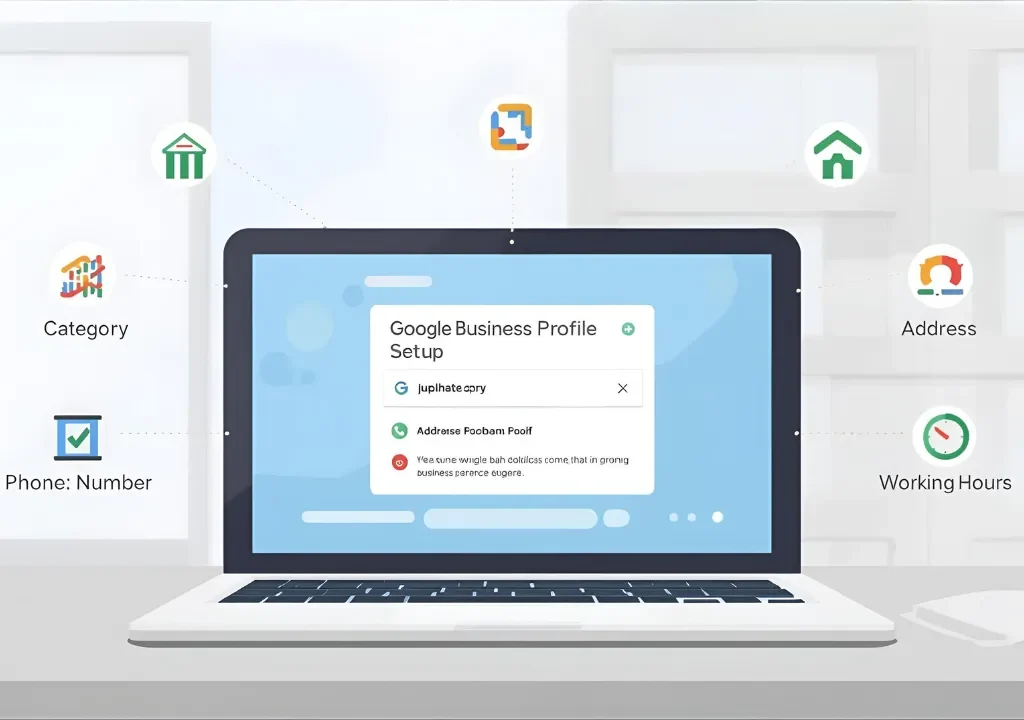
Step 1: Create or Claim Your Google Business Profile
Go to Google and search for “Google Business Profile”.
Sign in using a Google account you control long-term. Avoid using a temporary or staff email.
Now:
- Search for your business name
- If it exists, claim it
- If not, create a new profile
Use your real business name. Don’t add keywords like “best” or “cheap”. Google penalizes that.
Step 2: Choose the Right Business Category
This is one of the most important steps.
Your primary category tells Google what your business actually does.
Examples:
- Dentist, not Medical Services
- Restaurant, not Food Place
- Digital Marketing Agency, not Consultant
You can add secondary categories later, but choose the most accurate main one first.
Wrong category equals wrong audience.
Step 3: Add Business Location or Service Area
If you have a physical location:
- Enter your full address exactly as it appears outside your shop
- Keep it consistent with your website and other listings
If you visit customers:
- Hide your address
- Add service areas like cities or pin codes
Do not fake addresses. Google verifies locations aggressively now.
Step 4: Enter Contact Details Correctly
Add:
- Phone number that customers actually answer
- Website URL, if you have one
If you don’t have a website yet, that’s okay. The profile still works.
Make sure:
- Phone number matches what’s on your website
- Avoid call tracking numbers in the beginning
Consistency builds trust with Google, and that is why building a strong digital brand identity is a crucial factor nowadays.
Step 5: Verify Your Business
Verification proves you own the business.
Google may verify via:
- Postcard
- Phone
- Video verification
Follow instructions carefully.
Do not edit major details until verification is complete. It can delay approval.
Once verified, your business becomes visible on Google Maps and local search.
Step 6: Set Business Hours Properly
Add your regular working hours.
Also update:
- Holidays
- Special timings
- Temporary closures
Nothing frustrates customers more than visiting a closed shop shown as open on Google.
Google tracks this. Accuracy helps ranking.
Step 7: Write a Clear Business Description
You get 750 characters.
Use simple language. Talk like a human, not an ad.
Cover:
- What you do
- Who you serve
- What makes you different
Example structure:
- First line: core service
- Middle: experience or speciality
- End: location or service area
Avoid promotional claims like “number one” or “best in the city”.
Step 8: Add High-Quality Photos and Videos
Profiles with photos get more clicks and calls.
Upload:
- Logo
- Cover image
- Exterior and interior photos
- Team or working photos
- Product or service visuals
Tips:
- Use real photos, not stock
- Clear lighting
- Horizontal images work best
Update photos every month if possible. It signals activity.
Step 9: Enable Messaging and Call Features
Turn on messaging so customers can text you directly from Google.
Make sure:
- Someone replies quickly
- Notifications are on
Missed messages can hurt trust and negatively impact response metrics.
Step 10: Start Collecting Reviews (The Right Way)
Reviews influence both customers and Google rankings.

Ask happy customers politely:
- After service completion
- Via WhatsApp or SMS
- In person with a simple request
Never buy fake reviews. Never offer discounts for reviews. Individual professionals, businesses and doctors can build a strong digital identity.
Reply to every review:
- Thank positive reviewers
- Respond calmly to negative ones
- Show professionalism
Google watches how you engage.
For professionals like doctors and consultants, Google Business Profile is only one part of the visibility puzzle. Your personal brand plays a huge role in how trust is built online. If you want a deeper understanding of how reputation, authority, and visibility work together, watch this detailed video on How to Rank #1 on Google Search & Get Free Leads Every Day! on the Marcom Trends YouTube channel.
Step 11: Post Regular Updates on Your Profile
Google Business Profile is not a one-time setup.
Use posts to share:
- Offers
- Updates
- Tips
- Announcements
- Events
One post a week is enough.
This keeps your profile active and improves visibility.
Step 12: Use Insights to Track Performance
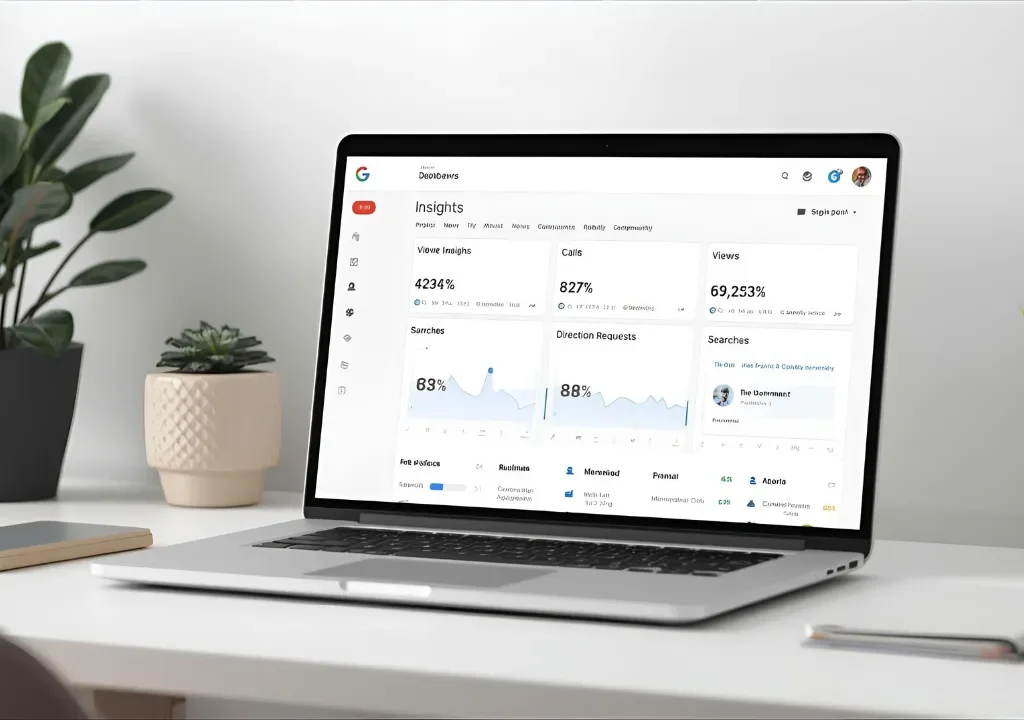
Inside your dashboard, check:
- How customers find you
- Search terms used
- Calls, visits, direction requests
- Photo views
This tells you what’s working and what needs improvement.
This will help you to build a structured lead generation funnel for your business, whether you do it with your own or your brand consultant can guide you to build a structured process by providing the best service that suits your business requirements.
Treat it like a mini marketing channel, not just a listing.
Common Mistakes to Avoid
Here’s what hurts most profiles:
- Keyword stuffing in a business name
- Wrong category selection
- Inconsistent address or phone number
- No reviews or replies
- No photos or outdated photos
- Setting it once and forgetting it
Fix these, and you’re already ahead of many competitors.
Conclusion
Google Business Profile is not optional anymore for local businesses.
It’s often the first impression customers get. Done right, it builds trust before you even speak to them.
Set it up carefully. Keep it accurate. Update it regularly.
If your local customers are searching on Google, your business should meet them there, clearly, confidently, and professionally.
FAQs
Is Google Business Profile really free?
Yes. Google does not charge for creating or managing your profile.
How long does verification take?
It can take a few minutes to a few days, depending on the verification method.
Can I manage multiple locations?
Yes. Google allows bulk management for multiple business locations.
How many reviews do I need?
There’s no fixed number. Consistent, genuine reviews matter more than volume.
Can I edit details after verification?
Yes. You can update hours, photos, posts, and descriptions anytime.
[…] complete Google My Business (GMB) profile ensures patients find your clinic when searching locally. […]
[…] local café that uses bold colours and a quirky tone for young professionals and […]
[…] Consistency builds familiarity. Familiarity builds trust. […]
[…] Google Business Profile […]
[…] Google review screenshots […]